
To transfer a domain to another registrar, first unlock the domain at your current registrar and get its authorisation (auth or EPP) code. Make sure the registrant email on the domain is one you can receive. Then start the transfer at the new registrar, enter the code and pay. The new registrar usually charges for one extra year, which is added to your registration. Your current registrar has five calendar days to respond, and if it does nothing, the transfer goes through automatically. Most transfers finish within about five days. Your website and email keep working as long as your DNS settings stay the same.
This guide explains each step, the 60-day rules that most often block transfers, the status codes you might see, what happens to DNS and email, and what changes are coming. It follows ICANN’s Transfer Policy for generic domains such as .com, .net and .org, checked on 13 November 2026, and notes where country domains such as .in work differently.
Key takeaways
- Only the registrant (the domain’s owner) can approve a transfer.
- Your current registrar must give you the auth code and remove its transfer lock within 5 calendar days of your request.
- A registrar may refuse a transfer within 60 days of registration or a previous transfer. After a change of owner details it must lock transfers for 60 days, unless you opted out beforehand.
- A transfer normally adds one year, up to a maximum of 10 years remaining.
- Keep the same nameservers during the move so your site and email stay up.
- ICANN approved new transfer rules in June 2026 (30-day waits, a new one-time code), but they aren’t in force yet.
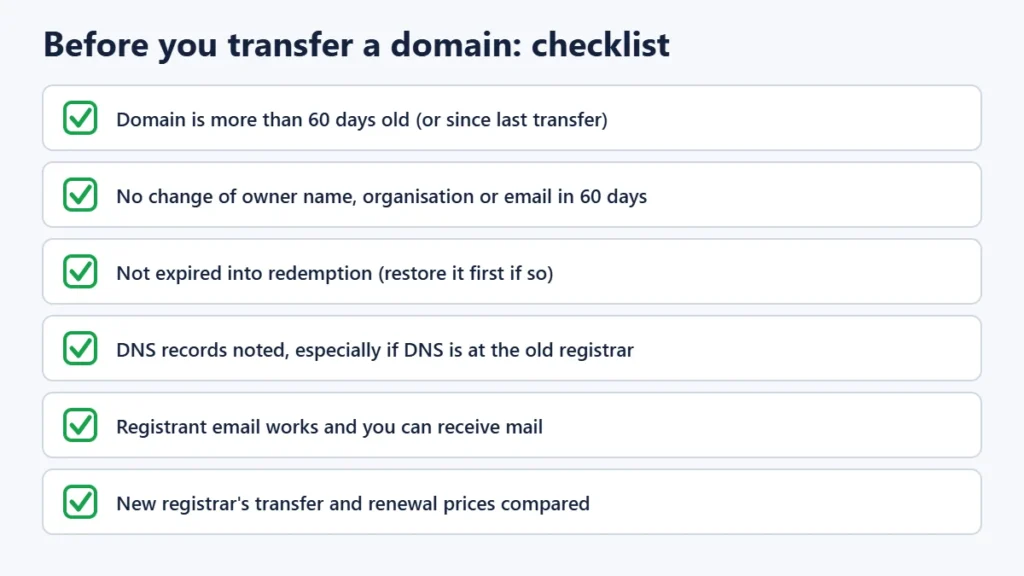
Before you start: a quick checklist
- Check the dates. If the domain was registered or transferred less than 60 days ago, your registrar can refuse.
- Check the owner details. If you changed the registrant’s name, organisation or email in the last 60 days, a transfer lock probably applies.
- Check the expiry date. A domain that has expired can still be transferred. But once deletion has started (the redemption period), it must be restored at the current registrar first.
- Check DNS. If your current registrar also hosts your DNS, email forwarding or a website builder, note every record before you move.
- Compare prices. Registrars set their own transfer and renewal prices. ICANN doesn’t fix them.
How to transfer a domain, step by step
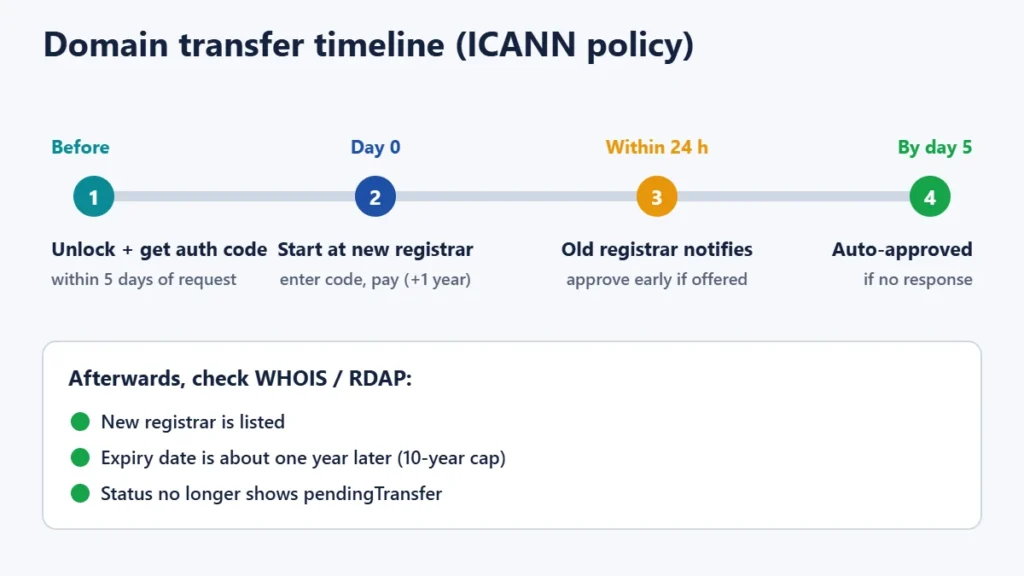
- Unlock the domain at your current registrar. This removes the clientTransferProhibited status, often called “registrar lock” or “transfer lock”.
- Request the auth code, also called the EPP code or transfer key. ICANN’s policy says the registrar must provide it within five calendar days. Many show it straight away in the dashboard.
- Make sure the registrant email is current. Transfer notices may be sent to it, and changing it later can trigger a 60-day lock.
- Start the transfer at the new registrar. Enter the domain, paste the auth code and pay. The fee usually includes one year of renewal.
- Approve any confirmation emails. Your current registrar should send a notice within 24 hours. Some let you approve the transfer early.
- Wait up to five days. If the current registrar doesn’t respond within five calendar days, the policy treats the transfer as approved.
- Check the result. In a WHOIS or RDAP lookup the new registrar should appear, the expiry date should be a year later, and the domain status should be back to normal.
The 60-day rules, explained
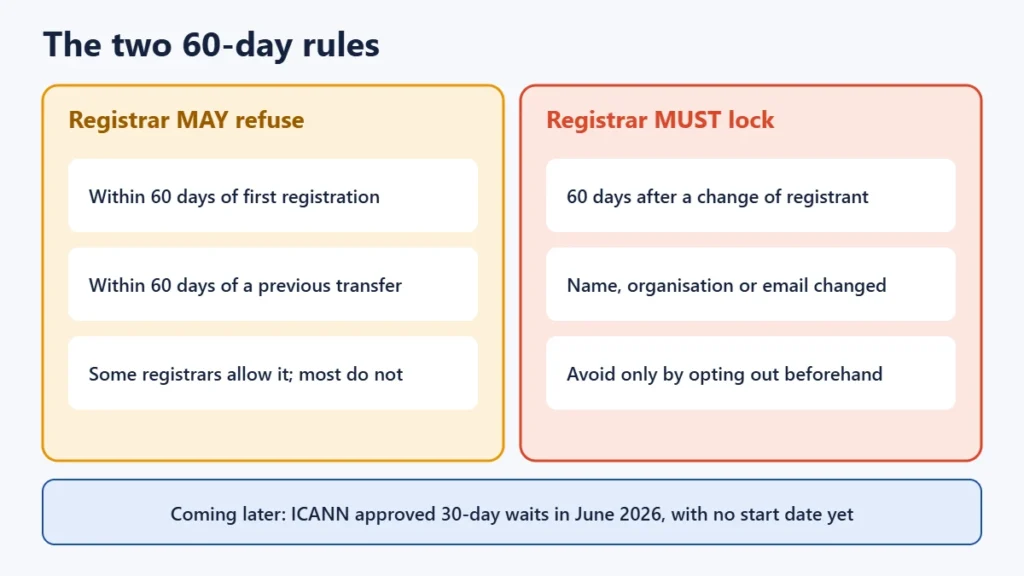
The 60-day rules are the most common reason a transfer is refused, and they are often misunderstood. There are two different rules.
| Situation | What the policy says | Can you avoid it? |
|---|---|---|
| Within 60 days of first registration | The registrar may deny a transfer | Some registrars allow it. Most don’t, so wait. |
| Within 60 days of a previous transfer | The registrar may deny a transfer | Same as above |
| Within 60 days of a change of registrant (name, organisation or email) | The registrar must lock transfers for 60 days | Only if you opted out before making the change, where the registrar offers this |
A “change of registrant” means any change to the owner’s name, organisation or email address that isn’t just a typo correction. If you plan to move a domain and update the owner details, consider moving it first or opting out of the lock when you change the details.
When a registrar must, may, or may not refuse
- Must refuse: when there is a pending UDRP dispute it knows about, a court order, a pending transfer dispute, a URS case, or the 60-day change-of-registrant lock.
- May refuse: evidence of fraud, a dispute over who the owner is, an unpaid previous registration period, the 60-day periods above, or the owner’s express objection.
- May not refuse: because a future renewal hasn’t been paid, because the owner didn’t reply to a confirmation, or simply because the domain is locked, as long as you have a fair chance to unlock it. A registrar also can’t hold back the code or lock over a payment dispute alone.
If a registrar breaks these rules, you can complain to ICANN.
Domain status codes you may see
| Status | Meaning | What to do |
|---|---|---|
| clientTransferProhibited | Your registrar’s transfer lock is on | Unlock it in your registrar dashboard |
| serverTransferProhibited | The registry has locked transfers | Ask your registrar why. You can’t remove it yourself. |
| pendingTransfer | A transfer is in progress | Wait, or approve it at the current registrar |
| redemptionPeriod | The domain was deleted after expiry and can still be restored | Restore it at the current registrar first. It can’t be transferred. |
| pendingDelete | The domain is about to be released | Usually too late to transfer or restore |
| ok | No restrictions | You can transfer, once you have the auth code |
Keeping your website and email working
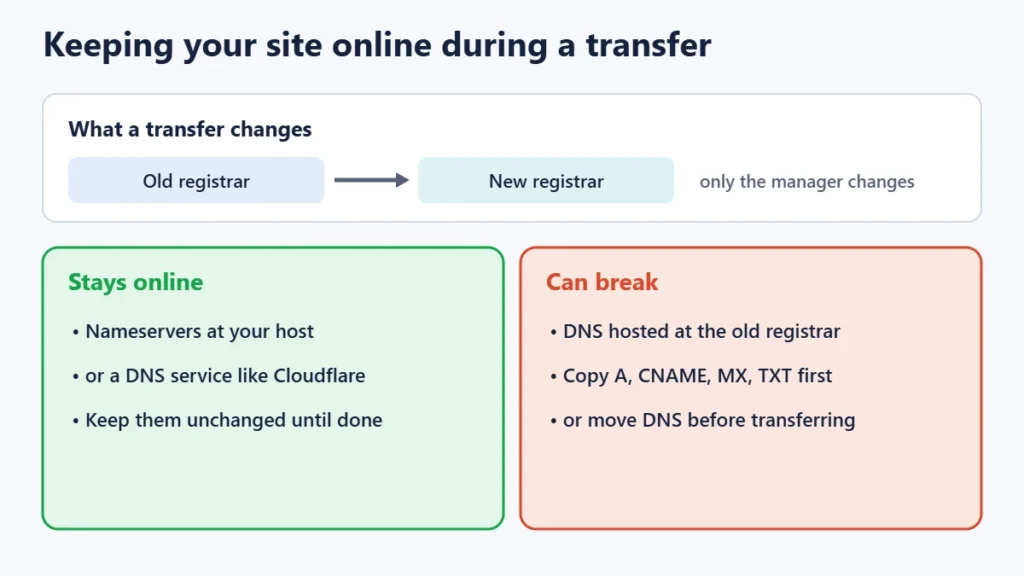
A transfer changes who manages the registration, not where the domain points. If your nameservers belong to your web host or a DNS service such as Cloudflare, nothing changes during the move. Problems happen when the old registrar also provides your DNS, because its DNS hosting can stop once the domain leaves. Before transferring, either move DNS to your host (or another provider) and wait for it to take effect, or copy every record (A, CNAME, MX, TXT) so you can recreate them at the new registrar. Avoid changing nameservers while a transfer is pending, as some registrars block it.
Does a transfer add a year?
Usually, yes. When a transfer completes, the registration is normally extended by one year, which is why transfers cost about the same as a renewal. There are limits. The total remaining term can’t exceed 10 years, so a domain already registered far ahead may not gain a full year. And if you transfer during the grace period just after expiry, the automatic renewal from the old registrar can be cancelled and replaced by the transfer year, rather than both being added. Check the expiry date afterwards in a WHOIS lookup.
Country domains work differently
ICANN’s policy covers generic domains. Country-code domains follow their own registry’s rules. For .in, the registrar issues a 6 to 16 character auth code, the new registrar starts the transfer, and it completes within five days. Our separate guide to registering a .in domain covers its rules in more detail. For .uk, there is no auth code: you ask your registrar to change the domain’s “IPS tag” to the new registrar’s tag. For any other country domain, check the registry’s or new registrar’s help pages before starting.
What’s changing: the new ICANN transfer rules
On 7 June 2026 ICANN’s Board adopted the recommendations of its Transfer Policy Review. When implemented, the auth code will become a Transfer Authorization Code (TAC) that can be used only once. The waiting period after a new registration or a transfer will become 30 days. And the 60-day lock after a change of registrant will move to a separate policy. ICANN hasn’t set a date for these changes, so the rules in this guide still apply. Check your registrar’s help pages for updates.
Common transfer problems and fixes
- “Invalid auth code”: copy it again without spaces, or ask your registrar to generate a new one.
- “Domain is locked”: turn off the transfer lock and try again after a few minutes.
- Transfer refused within 60 days: wait until the 60 days have passed, or ask the registrar whether it can make an exception.
- Transfer stuck as pending: look for an approval email from the current registrar, or wait out the five days.
- Site or email down after the transfer: your DNS was hosted at the old registrar. Recreate the records at the new registrar or point the nameservers to your host.
If you are moving because of renewal prices, look at both the first-year and the renewal price. Our Verpex review shows how much renewals can rise, and our Cyber Monday hosting deals list offers to compare.
Frequently asked questions
How long does a domain transfer take?
Usually up to five days. The current registrar has five calendar days to respond, and if it doesn’t, the transfer is approved automatically. Some registrars complete it faster if you approve the transfer early.
Will my website go down during a transfer?
Not if your nameservers stay the same and your DNS isn’t hosted at the old registrar. A transfer changes who manages the registration, not where the domain points.
Why can’t I transfer my domain within 60 days?
Registrars may refuse transfers within 60 days of registration or a previous transfer, and must lock transfers for 60 days after a change of the owner’s name, organisation or email, unless you opted out first.
Do I lose the time left on my domain?
No. A transfer normally adds a year on top of the time remaining, up to a 10-year maximum.
Can I transfer an expired domain?
Yes, while it’s still in its grace period. Once it has been deleted and entered redemption, it must be restored at the current registrar before it can move.
What is an auth code or EPP code?
It is a password for the domain that proves you have authority to move it. You get it from your current registrar and give it to the new one.
The short version
Check the 60-day rules and your DNS, unlock the domain, get the auth code, start the transfer at the new registrar, approve any emails and wait up to five days. Keep the same nameservers and your site won’t notice the change.