
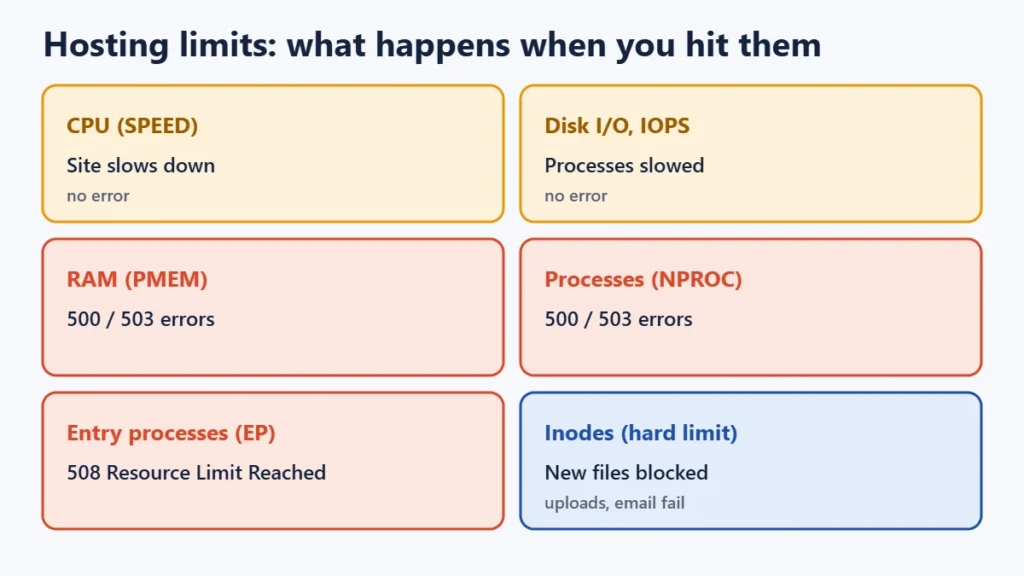
Every web hosting plan has limits, including plans sold as “unlimited”. The ones that matter are storage (how much disk space your files, databases and email use), bandwidth or data transfer (how much data your site sends to visitors), inodes (how many files you can have), and the server resources shared hosts set per account: CPU, RAM (memory), entry processes (how many requests run at once) and disk I/O. On most shared hosting these are enforced by software called CloudLinux. Hitting a limit doesn’t always mean an error. CPU and disk limits make your site slow. Memory and process limits usually cause 500 or 503 errors. Too many entry processes gives a “508 Resource Limit Reached” page.
This guide explains each limit in plain terms, what happens when you hit it, how to check your usage in cPanel or Hostinger’s hPanel, how to estimate bandwidth, and what “unlimited” really means. It is based on CloudLinux’s and cPanel’s documentation, Linux reference pages, advertising regulators’ rulings and hosts’ own policies, checked on 13 November 2026.
Key takeaways
- Storage includes files, databases and usually email. Inodes count the number of files, however small they are.
- Bandwidth on hosting plans usually means total monthly data transfer, roughly page size × pageviews.
- CPU and I/O limits slow your site. Memory and process limits cause 500/503 errors. Entry-process limits cause 508 errors.
- “Unlimited” means no fixed cap, subject to fair use. CPU, memory, process and inode limits still apply.
- Check CPU and Concurrent Connection Usage in cPanel, or Resources Usage in hPanel, before upgrading.
The limits at a glance
| Limit | What it measures | What happens when you hit it |
|---|---|---|
| Storage (disk space) | Files, databases and usually email on your account | Uploads, emails and backups fail |
| Inodes | The number of files and folders | At the hard limit, no new files can be written |
| Bandwidth / data transfer | Data sent to and from your site | Depends on the host: charges, throttling or a request to upgrade |
| CPU (SPEED) | Processing power, as a share of one CPU core | The site slows down |
| RAM (PMEM) | Physical memory your processes use | Usually 500 or 503 errors |
| Entry processes (EP) | New PHP or CGI requests running at once | “508 Resource Limit Reached” page |
| Processes (NPROC) | Total processes and threads | 500 or 503 errors |
| Disk I/O and IOPS | Disk read/write speed and operations per second | Processes are slowed, not stopped |
Storage and inodes
Storage
Disk space covers everything on your account: website files, uploaded images, databases, backups kept on the server and, on most plans, email. cPanel’s Disk Usage tool counts MySQL and PostgreSQL databases too. Old backup files and large mailboxes are the usual surprise.
Inodes
On Linux, every file and folder has an inode, a small record of its details such as size, owner, permissions and location on disk. An inode limit is therefore a limit on the number of files, whatever their size. A site with a few large videos uses few inodes. A site with an aggressive cache plugin can use hundreds of thousands. cPanel’s own blog lists the common causes:
- cache files from caching plugins
- mailboxes with many small messages (each email can be a file)
- old backups stored on the account
- badly written scripts that keep creating files
CloudLinux supports soft and hard inode limits. You can go over the soft limit for a grace period (seven days by default). The hard limit blocks new files entirely, which can break uploads, updates and incoming email.
Bandwidth and data transfer
Strictly, bandwidth is a rate: how much data can move per second. Hosting companies usually use the word to mean total data transferred in a month. That is the figure to look at.
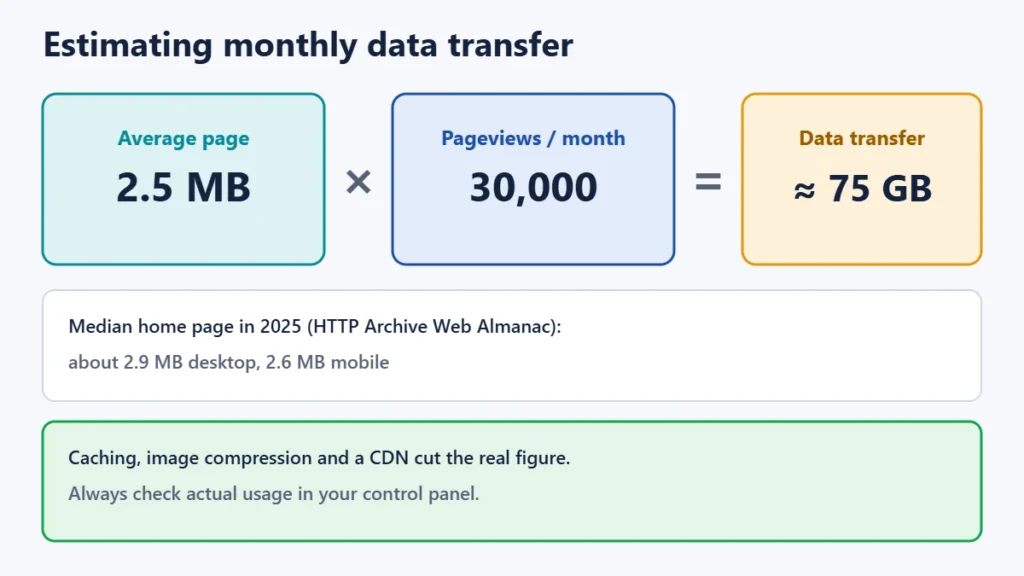
A rough way to estimate monthly transfer is average page size × monthly pageviews. The HTTP Archive’s 2025 Web Almanac put the median home page at about 2.9 MB on desktop and 2.6 MB on mobile. At 2.5 MB per page and 30,000 pageviews a month, that is about 75 GB, before caching and a CDN reduce it. Treat this as a ballpark figure only. Your real usage in the control panel is what counts. Note that cPanel doesn’t count email collected over POP3/IMAP, File Manager transfers, DNS or cron jobs in its bandwidth figure.
CPU, RAM and entry processes
On shared hosting, many websites share one server. CloudLinux puts each account in a “Lightweight Virtual Environment” (LVE) with its own limits, so one busy site can’t slow down everyone else.
- CPU (SPEED) is set as a percentage of one CPU core. If your site needs more, its requests queue and pages load slowly. There is no error message.
- Physical memory (PMEM) is the RAM your site’s processes can use. Going over usually produces 500 or 503 errors.
- Entry processes (EP) limit how many new requests can be handled at once. This is not the number of visitors. A visitor reading a cached page may not start a PHP process at all. Exceeding it shows a 508 Resource Limit Reached page.
- NPROC limits the total number of processes and threads. Hitting it can also cause 500 or 503 errors.
- I/O and IOPS limit disk throughput and operations per second. Processes are slowed rather than stopped.
The 508 status code was officially defined for a different purpose (“Loop Detected” in WebDAV). Its “Resource Limit Reached” meaning comes from CloudLinux, which is why you see it mainly on shared hosts.
How to check your usage
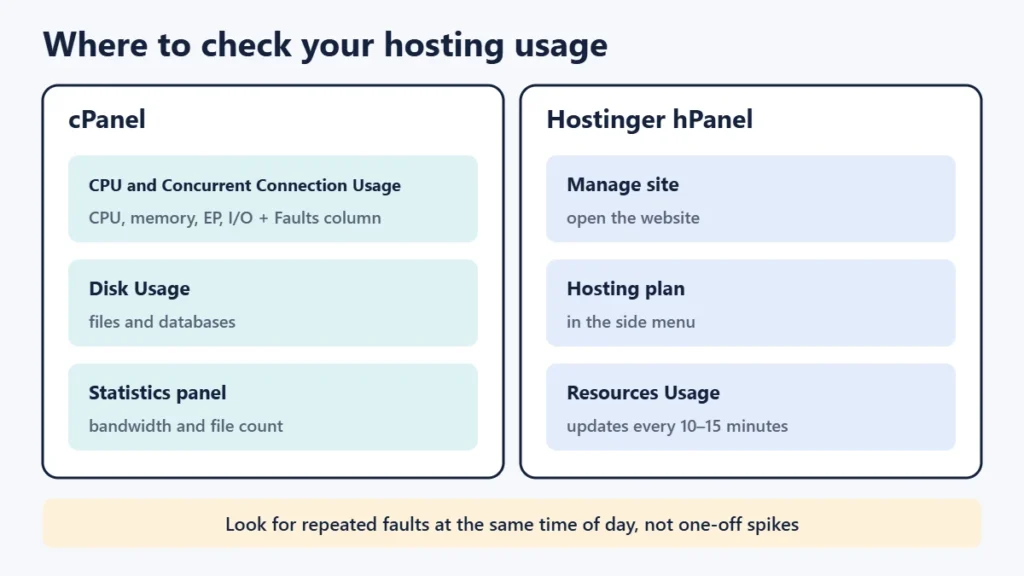
- cPanel: open CPU and Concurrent Connection Usage (on CloudLinux servers) to see CPU, memory, entry processes and I/O over time. The Faults column shows how often each limit was hit. Use Disk Usage for storage, and the Statistics panel for bandwidth and file count.
- Hostinger hPanel: go to the site, then Hosting plan → Resources Usage. Hostinger says the data updates every 10–15 minutes.
- Other hosts: look for “resource usage”, “account limits” or “statistics” in the dashboard, or ask support for your LVE limits.
Look for patterns, not one spike. Frequent faults at the same time each day often point to a backup job, a cron task or a crawler, not to real visitors.
What “unlimited” hosting really means
“Unlimited” in hosting adverts nearly always means no fixed cap on that item, subject to fair use. Hosts’ own terms say so:
- Hostinger’s hosting agreement describes unlimited features as having “no predefined caps”, subject to its fair usage policy, with possible restriction or suspension.
- Namecheap’s unmetered policy says CPU, memory, entry-process and inode limits still apply.
- Bluehost’s account limits summary lists unmetered bandwidth alongside inode, CPU and process limits.
Regulators have pushed back where limits were hidden. The UK’s Advertising Standards Authority accepts “unlimited” only if ordinary users face no extra charges or suspension and any limits are moderate and clearly explained. It has upheld complaints against “unlimited” online backup storage and satellite broadband whose limits weren’t properly disclosed. In the US, the FTC’s 2019 settlement with AT&T over throttled “unlimited” mobile data said such limits must be disclosed prominently, not buried in fine print. These cases weren’t about web hosting, but they show the standard: read the fair-use terms before you rely on “unlimited”.
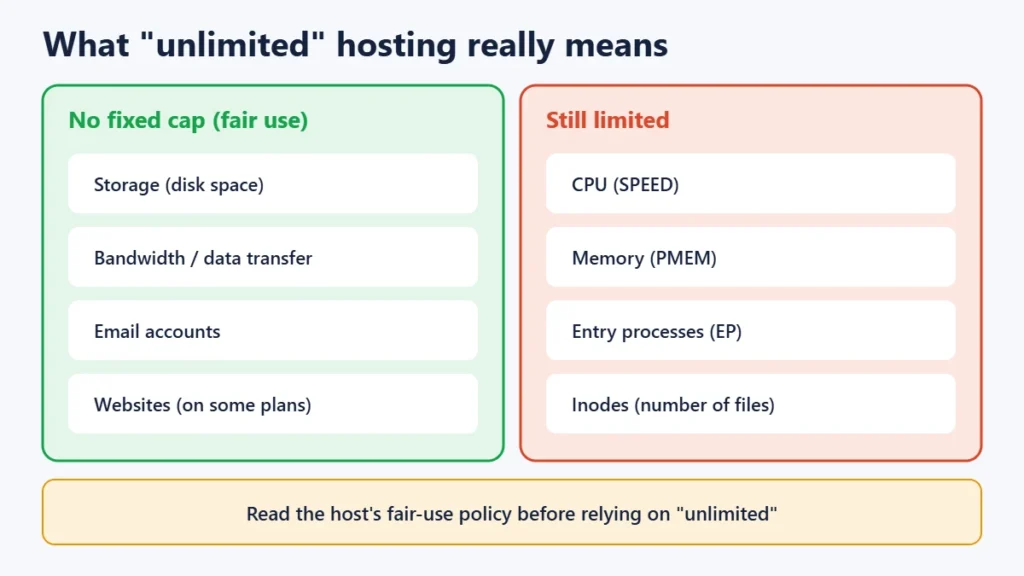
In practice, the limits that decide whether an “unlimited” plan works for you are usually CPU, memory, entry processes and inodes, not storage or bandwidth. Our Verpex review shows a real example of the caps behind an “unlimited” plan.
How to stay within your limits
- Use page caching so most visits don’t start PHP processes. This lowers CPU and entry-process use. Our FlyingPress review and Perfmatters review explain two speed plugins.
- Compress images and serve modern formats such as WebP to cut data transfer.
- Use a CDN to serve static files from servers near your visitors.
- Clear old backups and cache folders, and store backups off the server.
- Move email to a separate email service if mailboxes are eating storage and inodes.
- Block abusive bots and limit heavy cron jobs.
- Upgrade only when real usage shows you’ve outgrown the plan, often to a higher shared tier or a VPS.
Frequently asked questions
What is a good inode limit for a small website?
It depends on your host and plan. Hosts set different limits, so there is no universal number. A typical small WordPress site uses far fewer inodes than most plans allow, unless caching, email or backups pile up files.
What does “508 Resource Limit Is Reached” mean?
On CloudLinux shared hosting, it means your account hit its entry-process limit: too many requests were being handled at once. Caching and blocking bad bots usually help, or you may need a larger plan.
Does email count towards my hosting storage?
Usually, yes. Email stored on the server uses disk space and often inodes. cPanel doesn’t count email collected over POP3/IMAP in its bandwidth figure.
Is unlimited bandwidth really unlimited?
No plan is truly unlimited. “Unlimited” or “unmetered” bandwidth means no fixed monthly cap, subject to fair use. Other limits, such as CPU and entry processes, often decide how much traffic you can actually handle.
How do I know if I need to upgrade my hosting?
Check your resource usage for regular faults or slowdowns after you’ve added caching and cleaned up files. If limits are still hit often during normal traffic, upgrade.
The short version
Storage counts your data, inodes count your files, bandwidth counts what you send to visitors, and CPU, RAM and entry processes limit how much work your site can do at once. “Unlimited” means fair use, not no limits. Check your real usage in the control panel, cache and compress before paying more, and read the fair-use terms before you buy.