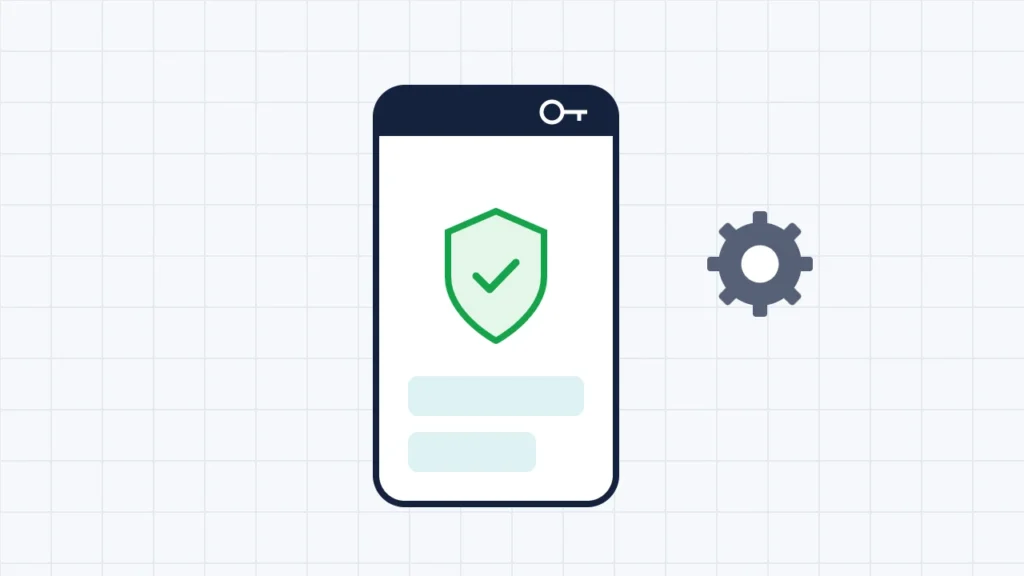
There are two ways to set up a VPN on Android. The easiest is to install a VPN app from the Google Play Store, sign in, tap Connect, and accept Android’s “Connection request” prompt. The other is to add a VPN profile in Android’s built-in settings, usually for a work or self-hosted VPN: go to Settings → Network & internet → VPN, tap Add, enter the details your provider or IT team gave you, and save. On Samsung phones the path is Settings → Connections → More connection settings → VPN. Once connected, a key icon appears in the status bar. To keep the VPN on all the time, open the VPN’s settings (the gear icon) and turn on Always-on VPN. Add Block connections without VPN only if you’d rather have no internet than an unprotected connection.
This guide walks through both methods, the Always-on and blocking options, how to check the VPN is working, how to remove it, and how to choose a trustworthy VPN app. It is based on Google’s Android Help pages, the Android Open Source Project’s settings code and developer documentation, Samsung’s support pages, Google Play’s policy for VPN apps and the Electronic Frontier Foundation’s VPN guide, checked on 13 November 2026. Menu names vary between phone brands and Android versions, so use the Settings search if you can’t find an option.
Key takeaways
- Most people should use a VPN app. It handles servers, protocols and settings for you.
- Built-in VPN profiles are for work or self-hosted VPNs: Settings → Network & internet → VPN → Add.
- Android’s built-in client offers IKEv2/IPSec types for new profiles. Older PPTP and L2TP options have been removed on newer Android versions.
- Always-on VPN reconnects the VPN automatically. Block connections without VPN cuts the internet whenever the VPN is down.
- Look for the key icon in the status bar to confirm the VPN is connected.
- A VPN app can see your traffic, so choose one you trust.
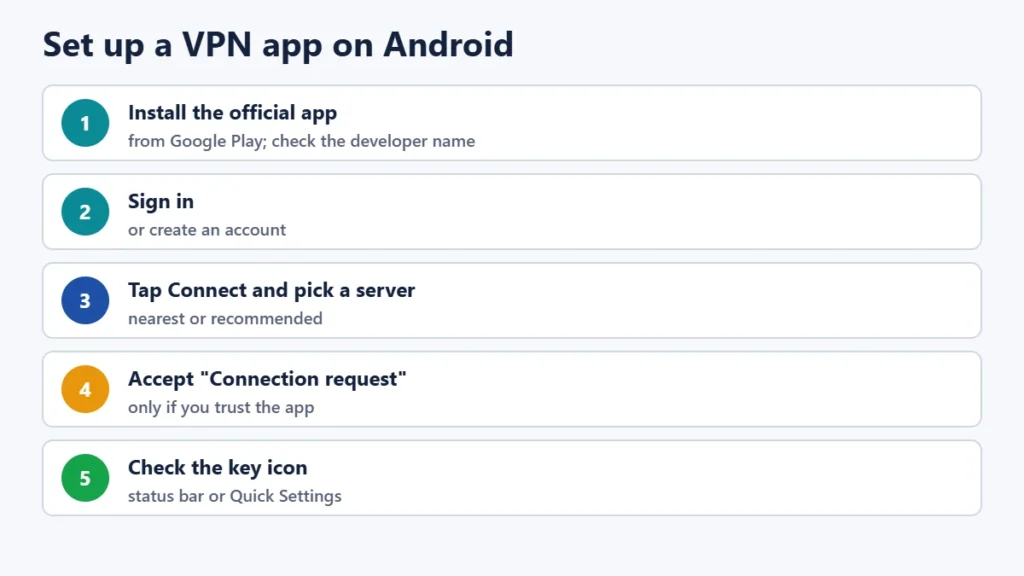
Method 1: Set up a VPN with an app (easiest)
- Choose a VPN service and install its official app from the Google Play Store. Check the developer name to avoid look-alike apps.
- Open the app and sign in or create an account.
- Tap Connect and choose a server, usually the nearest or the one the app recommends.
- Accept the “Connection request”. The first time, Android shows a prompt warning that the app will be able to monitor network traffic and that you should “only accept if you trust the source”. Tap OK.
- Check the key icon in the status bar, or the VPN tile in Quick Settings, to confirm you’re connected.
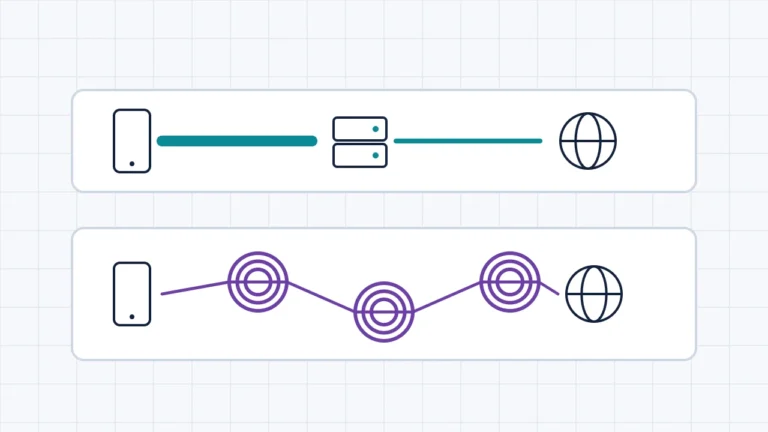
Most VPN apps also have their own settings for auto-connect, a kill switch (blocking traffic if the VPN drops) and split tunnelling (choosing which apps use the VPN). Only one VPN can run at a time, so if you install a second VPN app, turn the first one off.
Method 2: Add a VPN profile in Android settings
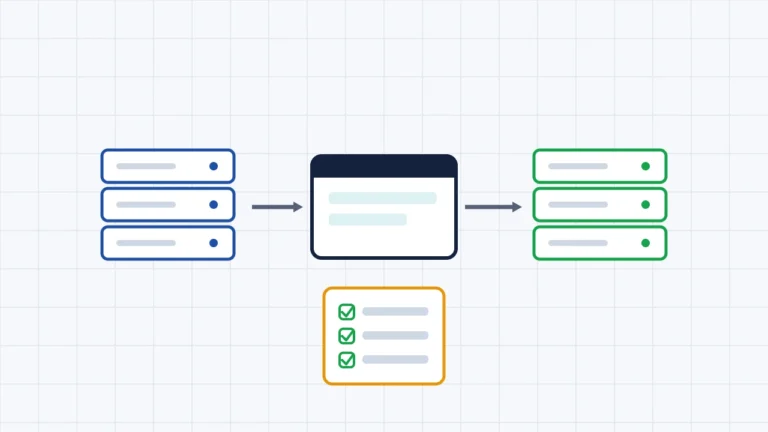
Use this if your workplace, school or your own server gave you VPN details such as a server address, a VPN type, and a username and password or certificate.
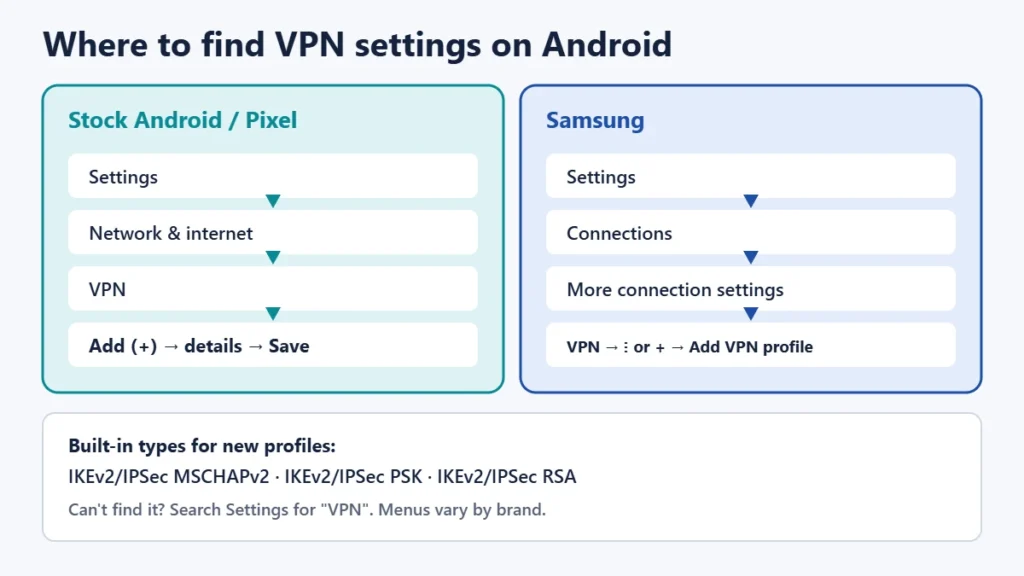
- Open Settings → Network & internet → VPN. If you can’t find it, search Settings for “VPN”.
- Tap Add (or +) at the top right.
- Enter a name and choose the type your provider specified. The options are IKEv2/IPSec MSCHAPv2 (username and password), IKEv2/IPSec PSK (pre-shared key) or IKEv2/IPSec RSA (certificate).
- Enter the server address and the other details you were given, then tap Save.
- Tap the new profile, enter your username and password if asked, and tap Connect.
Your phone may ask you to set a screen lock before you can add a VPN. Samsung, for example, says a screen lock is required. If your provider gave you PPTP or L2TP details, newer Android versions no longer offer those types for new profiles. Ask them for an IKEv2 configuration or their app instead.
On Samsung phones
Go to Settings → Connections → More connection settings → VPN (older models may say “More networks”), tap the three-dot menu or +, choose Add VPN profile, enter the details and tap Save. Samsung notes that steps vary by model and software version.
Always-on VPN and “Block connections without VPN”
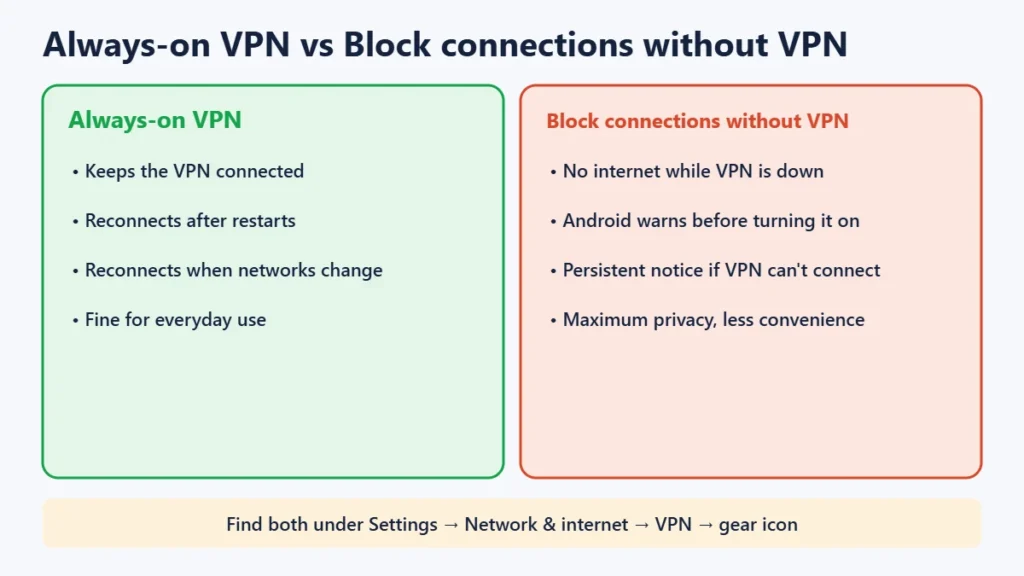
Android has two related options, available since Android 7.0. To find them, open Settings → Network & internet → VPN and tap the gear icon next to the VPN.
- Always-on VPN keeps the VPN connected and reconnects it automatically, for example after a restart or when you switch networks.
- Block connections without VPN stops all internet traffic whenever the VPN isn’t connected. Android warns that you’ll have no internet until the VPN connects. If the always-on VPN can’t connect, you’ll see a persistent notification.
Turn on blocking only if you’d rather lose connection than browse unprotected. For everyday use, Always-on alone is usually enough. Some VPN apps don’t show the Always-on option in Android’s settings. In that case, use the app’s own auto-connect and kill-switch settings.
How to check your VPN is working
- Look for the key icon in the status bar and the VPN panel in Quick Settings. The icon may look slightly different on some brands.
- Check your IP address with any IP lookup website, once with the VPN off and once with it on. With the VPN on, it should show the VPN server’s location.
- Open a few apps and sites to make sure traffic still flows. If nothing loads, see our guide to fixing a VPN that won’t connect.
How to turn off or remove a VPN
- Disconnect: open the VPN app and tap Disconnect, or tap the VPN in Quick Settings.
- Remove a built-in profile: Settings → Network & internet → VPN → gear icon → Forget.
- Remove a VPN app: uninstall it. Its VPN entry disappears with it.
- Work phone or work profile? Your organisation may manage the VPN. Ask your IT admin before changing or removing it.
Choosing a VPN app you can trust
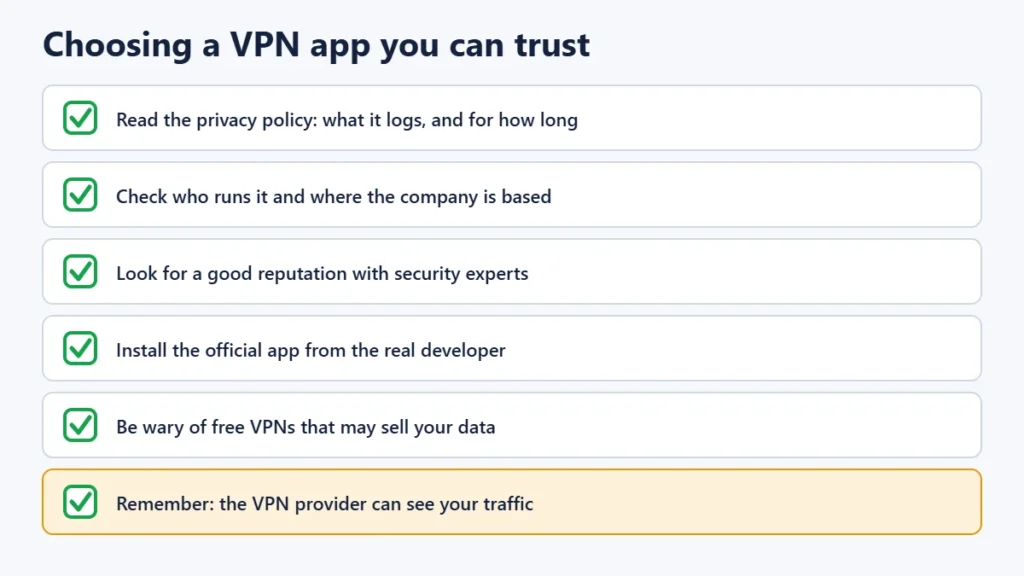
A VPN app can see everything you send through it, so trust matters more than features. The EFF’s guidance is that a VPN isn’t a tool for anonymity, that the provider can see your traffic, and that free VPNs may make money from your data. Before installing, check:
- The privacy policy: what it logs and how long it keeps it.
- Who runs it and where the company is based.
- Its reputation among security experts and independent reviewers.
- The Play Store listing: Google’s policy requires apps that create VPN tunnels to have VPN as their core function, encrypt traffic and disclose VPN use. That rule doesn’t guarantee an app is trustworthy or keeps no logs.
Our reviews of Proton VPN and Surfshark cover two well-known services. For why a VPN may not be needed for everything, see whether public Wi-Fi is safe.
What about Private DNS?
Android’s Private DNS setting (Settings → Network & internet → Private DNS) encrypts only your DNS lookups, the step where your phone finds a website’s address. It’s not a VPN and doesn’t hide your other traffic. Google describes it as helping to secure only DNS questions and answers.
Frequently asked questions
Does Android have a built-in VPN?
Android has a built-in VPN client for connecting to a VPN server you already have, such as a work VPN. It doesn’t come with a VPN service of its own on most phones. For that, use a VPN app.
Why can’t I find PPTP or L2TP on my Android phone?
Newer Android versions offer only IKEv2/IPSec types for new built-in profiles. Ask your VPN provider for IKEv2 settings or its app.
What does the key icon mean on Android?
It shows that a VPN is connected.
Should I turn on “Block connections without VPN”?
Only if you want no internet at all whenever the VPN is down. It’s useful for maximum privacy but can be frustrating if the VPN drops often.
Is it legal to use a VPN on Android in India?
Yes, for individuals. CERT-In’s rules apply to VPN providers. See our guide to whether VPNs are legal in India.
Why do my banking apps stop working with a VPN on?
Banking apps run device, SIM and location checks that a VPN can disrupt. Our guide to why banking apps don’t work with a VPN explains the fixes, including split tunnelling.
The short version
Install a trusted VPN app, sign in, tap Connect and accept the Connection request, or add a built-in IKEv2 profile under Settings → Network & internet → VPN for a work VPN. Turn on Always-on if you want it connected all the time, and check for the key icon. If it runs slowly, see our guide to why a VPN is slow.