Quick answer: Adobe Lightroom is a subscription photo editor and organiser for desktop, web and mobile that stores your photos in Adobe’s cloud. It suits photographers who want to edit raw files and keep a synced library across devices. As of October 2026, Adobe’s India pricing page listed the Lightroom plan (Lightroom plus Lightroom Classic and 1 TB of storage) at ₹382.32 a month on an annual plan, and the free Lightroom mobile app can be used without a subscription.
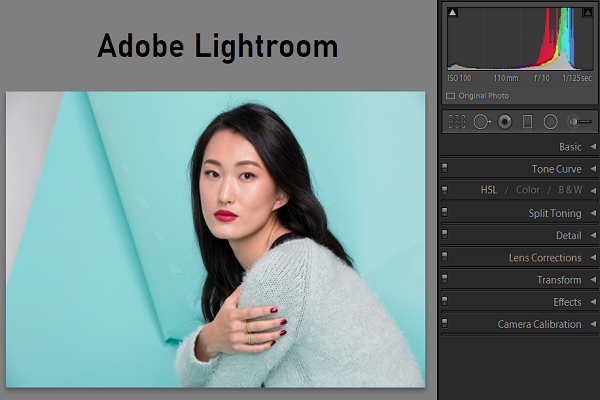
What Adobe Lightroom is
Lightroom is Adobe’s photo editing and cataloguing app for photographers. It lets you import, sort, edit and share large numbers of photos, and every edit is non-destructive: your original file is never changed. It works with raw camera files as well as JPEG and other common image formats.
Lightroom stores your library in the cloud, so a photo imported on a laptop can be edited on a phone or in a web browser. The mobile app for iPhone, iPad and Android is free to download, with premium features unlocked by a paid plan.
Lightroom vs Lightroom Classic
Adobe sells two related apps, and the difference still matters:
- Lightroom (once called Lightroom CC) is the cloud-based app with a simpler interface. It is the same app on desktop, mobile and web, and it uploads your originals to Adobe’s cloud.
- Lightroom Classic is the older desktop-only app that keeps your catalogue and files on your own drives. It has the separate Library, Develop, Map, Book, Print and Web modules, plus plug-in support and printing. Many professionals who manage very large local archives still prefer it.
An earlier version of this article said that Lightroom Classic came only with the Photography plan. As of October 2026, Adobe’s plan page lists Lightroom Classic as part of the Lightroom plan too.
Lightroom pricing and plans
Lightroom is sold only as a subscription. These are the individual plans listed on Adobe’s pricing pages in October 2026 (annual plans billed monthly; Indian prices include GST):
| Plan | What it includes | Cloud storage | India (per month) | US (per month) |
|---|---|---|---|---|
| Lightroom | Lightroom on desktop, mobile and web, plus Lightroom Classic | 1 TB | ₹382.32 | US$11.99 |
| Photography | Lightroom, Lightroom Classic and Photoshop | 1 TB | ₹599 (regular price ₹638.38) | US$19.99 |
Both plans offered a 7-day free trial, according to Adobe’s plan page. Adobe also bundles Lightroom in its larger Creative Cloud Pro plan. Prices and introductory offers change often and vary by country, so check Adobe’s plans page before you subscribe.
The earlier version of this article quoted US$9.99 a month for Lightroom with 1 TB, and a 20 GB Photography plan at US$9.99. Those prices and that 20 GB plan are no longer what Adobe’s pricing page shows.
System requirements
Adobe’s system requirements page (updated January 2026, for the October 2025 release, desktop version 9.0 and mobile version 11.0, and later) lists these minimums:
- Windows: Windows 10 (version 22H2) or Windows 11 (version 23H2 or later), a 64-bit Intel or AMD processor with SSE 4.2 support, 8 GB of RAM (16 GB recommended), 10 GB of free disk space and a GPU with DirectX 12 support and 2 GB of VRAM.
- macOS: macOS Sonoma (14) or later on a 64-bit Intel or Apple silicon Mac, 8 GB of RAM and 10 GB of free disk space. Lightroom will not install on case-sensitive file systems.
- iPhone and iPad: any device running iOS 17.0 or later. Some features, such as Lens Blur and Quick Actions, need a device with at least 4 GB of RAM.
- Android: Android 8 (Oreo) or later, a quad-core ARMv8 or x86_64 processor, 4 GB of RAM and 32 GB of internal storage.
Adobe recommends more GPU memory (8 GB dedicated, or 16 GB unified on Apple silicon) to run AI features such as Denoise and Lens Blur with full acceleration. The requirements in our original 2020 article (Windows 10 with 4 GB of RAM, Android 5, iOS 12.3) are out of date.
Interface and organising photos
Lightroom keeps a clean interface that starts simple and reveals more controls when you need them. Your synced photos fill the centre of the screen, with editing panels on the right and library navigation on the left. You can sort photos by capture date, import date or edit date, and switch between a grid and a single-photo view.
Adobe says Lightroom uses Adobe Sensei to recognise what is in your photos, so you can search for “beach” or “dog” without adding keywords yourself. The newer Assisted Culling feature filters photos by quality and groups similar shots to help you pick the best frames.
Importing and cloud backup
To import, you press the plus (+) button and choose a folder or memory card. Lightroom then uploads the originals to Adobe’s cloud. Pausing the upload is possible, but if you want to choose exactly which photos are synced to the cloud, Lightroom Classic gives you more control because it syncs only the collections you select.
Versions
The Versions feature, which this article reported when it arrived in the June 2020 update, lets you save different edits of the same photo and compare them side by side without creating duplicate files. Open the Versions panel from the editing area to create or switch between versions.
Editing tools
Lightroom covers the standard raw-editing toolkit: exposure, contrast, highlights and shadows, white balance, Texture, Clarity and Dehaze, a Point Curve, a Color Mixer, cropping, and a Geometry panel for correcting converging lines.
Raw profiles
When you import raw files, Lightroom applies a profile to turn the sensor data into a viewable image. Profiles sit at the top of the Edit panel, which makes sense because the profile is the starting point for every other adjustment. You can choose Adobe’s own profiles or profiles that match your camera maker’s look.
Auto and AI tools
The Auto button sets the main sliders for you and shows exactly which sliders it moved, so you can fine-tune the result. An earlier version of this article said Auto often gives “too much of an HDR look”; that was our opinion of a 2020 version and should be judged on current results.
On its feature page, Adobe documents these AI-assisted tools in Lightroom as of October 2026:
- Generative Remove, powered by Adobe Firefly, for removing distractions.
- Denoise (desktop) for AI noise reduction on high-ISO photos.
- Lens Blur for adding background blur after the shot.
- Adaptive Presets that target a portrait, sky or subject automatically.
- Select elements automatically: one-click selection of a person, animal or sky for local edits.
- Quick Actions for one-tap portrait retouching such as skin and teeth.
- Dust Removal for sensor spots, and Generative upscale for enlarging images.
Some generative features use Adobe’s monthly generative credits, which vary by plan.
Who Lightroom suits
- Good fit: photographers who shoot raw, want the same library on phone and computer, and are happy to pay a subscription.
- Consider Lightroom Classic: if you manage a large archive on local drives, print often or rely on plug-ins.
- Consider alternatives: if you want to avoid subscriptions. Our reviews of ON1 Photo RAW and Skylum Luminar cover editors sold with one-time licences, and our Capture One review covers another raw editor used by professionals. Our broader list of photo editing software compares more options.
Frequently asked questions
Is Adobe Lightroom free?
The Lightroom mobile app is free to download and use for core editing on iPhone, iPad and Android. Premium features, cloud storage and the desktop apps need a paid plan.
Can I buy Lightroom with a one-time payment?
No. Adobe sells Lightroom and Lightroom Classic only through Creative Cloud subscriptions.
What is the difference between Lightroom and Lightroom Classic?
Lightroom is cloud-based and works on desktop, mobile and web. Lightroom Classic is desktop-only, stores files locally and offers more modules, printing and plug-ins. Adobe’s Lightroom plan includes both.
Does Lightroom work without the internet?
You can edit offline, but Adobe says an internet connection is needed to activate the software and validate the subscription, and the app tries to validate it every 30 days. Syncing to the cloud also needs a connection.
Is Photoshop included with Lightroom?
Not in the Lightroom plan. The Photography plan includes Photoshop as well as Lightroom and Lightroom Classic.
Checked in October 2026 against Adobe’s Lightroom plan pages for India and the US, Adobe’s Lightroom feature page and Adobe’s Lightroom system requirements page. Prices change often; confirm on Adobe’s website before you subscribe.